The Easy Way to Set Up Medical ID on Your Phone
Because help should have the right info, right away
If something goes wrong and you can’t speak for yourself, your phone can still help. That’s where Medical ID comes in.
A Medical ID lets first responders (or even a helpful bystander) see key health details from your phone’s lock screen without needing your password. Things like allergies, medications, and exactly who to call in an emergency.
The good news? Both iPhones and Android phones can do this. They just use slightly different names.
Let’s walk through it together.
What’s a Medical ID?
A Medical ID is a built-in feature on your phone that stores emergency health info. Unlike the notes app or a photo in your gallery, this specific feature can be viewed without unlocking your phone.
This is vital in emergencies when seconds matter.
You can include:
Your name and age: So they know exactly who they are treating.
Medical conditions: Crucial context like diabetes, asthma, or heart conditions.
Allergies: To prevent dangerous reactions to emergency medicines.
Medications: A list of what you take daily.
Blood type: Helpful for hospitals to know immediately.
Emergency contacts: The phone numbers of the people who need to know you’re safe.
Why This Matters
First responders are trained to look for this specific digital card. It helps them:
Avoid dangerous mistakes: Giving you a medication you are allergic to can be fatal.
Contact your family faster: Instead of your phone sitting locked in a bag, a nurse can call your spouse or parent immediately.
Make safer treatment choices: Knowing you are on blood thinners, for example, changes how they treat an injury.
Setting this up takes about 5 minutes. It’s a small digital chore that could quite literally save your life.
How to Set Up Medical ID on an iPhone
Medical ID is built directly into the Health app on every iPhone. You don’t need to download anything new
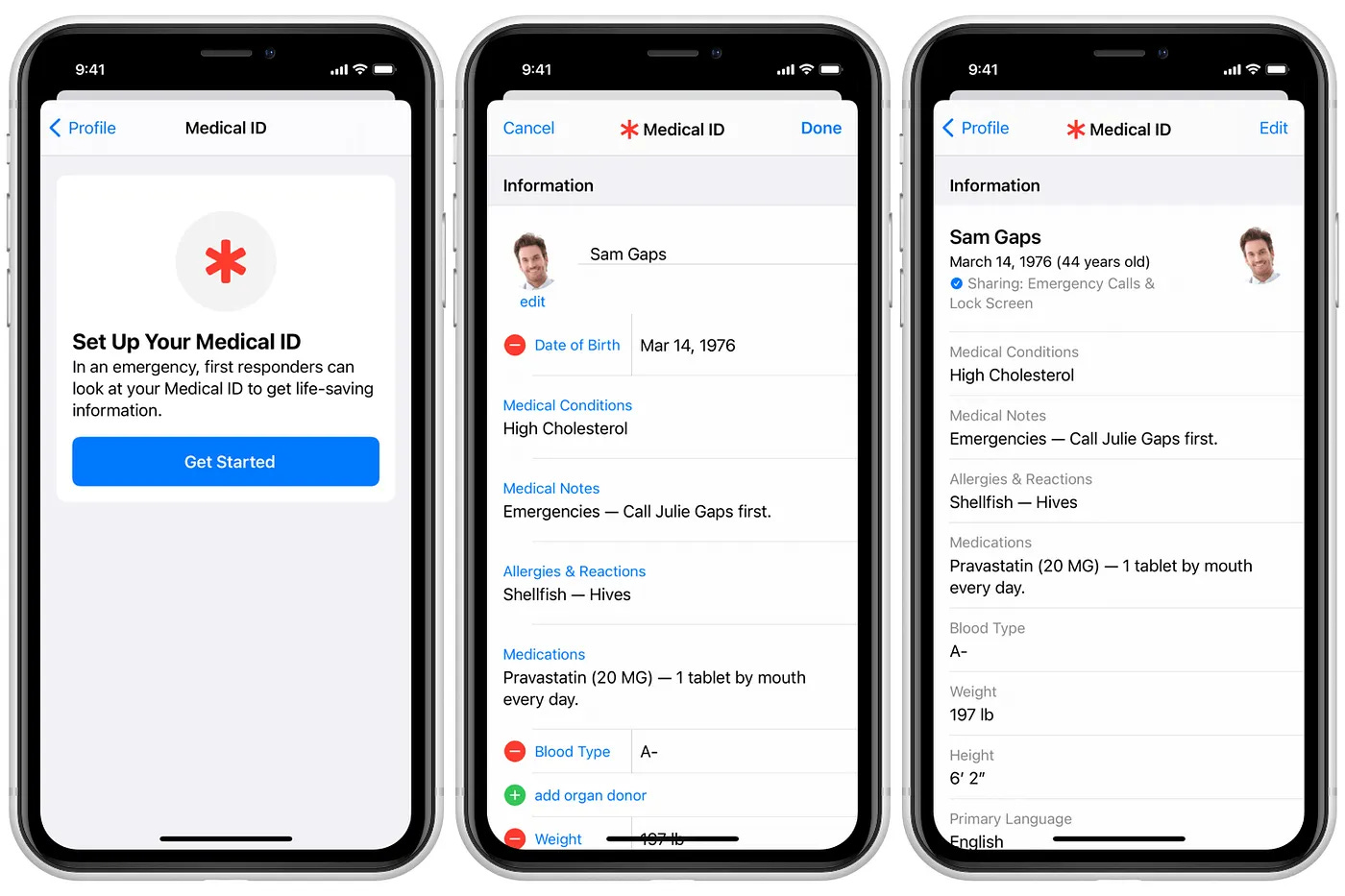
The Step-by-Step:
Find the Health App: Look for the white app icon with a pink heart.
Go to Your Profile: Tap your profile picture or icon in the top right corner.
Find the Setting: Tap Medical ID from the list.
Start Editing: Tap Edit in the top right corner.
Fill it Out: Add your birthdate, medical notes, and scroll down to add emergency contacts from your address book.
The Most Important Step: Scroll to the bottom and ensure “Show When Locked” is turned on (the toggle should be green). This allows the feature to work!
Finish: Tap Done.
That’s it. Your info is now waiting silently in the background, ready if needed.
How to Set Up Medical Info on Android Phones
Android phones (like Samsung, Google Pixel, or Motorola) handle this slightly differently depending on the brand. It is usually called “Emergency Information” or “Medical Info.”
For Samsung Galaxy Users:
Open Settings (the gear icon).
Scroll down and tap Safety and Emergency.
Tap Medical Info.
Enter your details (allergies, blood type, etc.).
Go back one screen and tap Emergency Contacts to add your family members.
Crucial Check: Make sure “Show on Lock screen” is toggled ON.
For Google Pixel & Motorola Users:
Open Settings.
Tap Safety & Emergency.
Tap Medical Information.
Fill in your details.
Ensure “Allow access to emergency info” is turned ON.
Pro Tip: If you can’t find these menus, open Settings and use the search bar at the very top. Type the word “Emergency” or “Medical” and the right menu should pop right up!
How to Test It (Verify First Responders Can See It)
You should check to make sure it works. Don’t worry, this won’t call 911 if you are careful.
Lock your phone completely.
Wake it up (press the power button or tap the screen) so you see the keypad asking for your passcode.
Tap “Emergency”: You will see this button at the bottom of the passcode screen.
Tap “Medical ID” or “Emergency Info”:
iPhone: Tap Medical ID in the bottom left corner.
Android: Tap Emergency Information at the top of the screen (you might need to tap it twice).
If your info pops up, you did it! You can now unlock your phone as normal.
Tech Term Explained
Lock Screen: The lock screen is the display you see before you enter your PIN, password, or Face ID. It’s the “gatekeeper” of your phone. By placing your Medical ID here, you are creating a “cat door” that lets helpers get only your health info without giving them access to your private texts, photos, or banking apps.
Did You Know?
It Syncs with Apple Watch: If you set this up on your iPhone, it automatically syncs to your Apple Watch. Responders can press and hold the side button on your watch to see the same info.
Bystanders can use it too: It’s not just for paramedics. If you faint at a grocery store, a helpful shopper can check your phone to find your name and see who to call.
Share During Call: On many modern phones, if you call 911, your phone can automatically transmit your Medical ID data to the dispatcher’s computer, saving you from having to speak if you are unable to.
What You Can Do Right Now
Take 5 minutes today to set this up.
Grab your phone.
Follow the steps above.
Bonus: Ask your spouse or a friend if they have done it, and help them if they haven’t! Now you’re this week’s Tech Hero! 🦸
Have a safe week ahead,
Steve